The trouble with many motherboards of computers is having or showing CMOS error whenever you switch on your PC. It is frustrating when you know your PC is less than a year old and already having that problem.
 Manufacturers of motherboards, especially those made in China, have that problem. Usually it should just be updating the BIOS and everything should be alright. But, no, it's not that way anymore. The problem could either be the 'botherboard' needs exactly the 3-volts of the CMOS battery and no less, or, the CMOS battery provides less than 3 volts.
It happened to an EMAXX motherboard and I thought replacing the CMOS battery solved it. The solution was only good for one day. It was the same thing on the second day showing CMOS error but there was actually none. The earlier errors before replacement was the date and time. Now there are no actual errors. Just press on F10 and all is good.
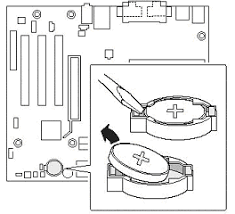
The issue is, if the AVR is turned off, it seems the CMOS battery no longer does the job it needs to do. It does not save the basic info it needs to start the CPU normally. So, if you do not want to getting into BIOS every start up, leave the AVR on. That will save precious minutes of going over BIOS and starting the computer.
Processors and heat sink fans will always need to have Silicon paste applied in between them when being installed. After dis-assembly for cleaning, you will find the paste between to have hardened and have breaks, some stay on the processor and others stick to the heat sink. These will have to removed and the surfaces cleaned well with a cotton bud dipped in rubbing alcohol.
When Silicon paste is not applied during re-assembly, chances are the computer will turn off on its own in a short while. This is because the processor has heated up and can not be cooled down by the heat sink fan.
In applying Silicon paste, it should be well spread out evenly on the surface of the processor. About a millimeter thin film of the paste should do the work to help the heat sink cool down the processor. While too much paste can drip down the processor and could ruin some of parts of the computer motherboard.

 Manufacturers of motherboards, especially those made in China, have that problem. Usually it should just be updating the BIOS and everything should be alright. But, no, it's not that way anymore. The problem could either be the 'botherboard' needs exactly the 3-volts of the CMOS battery and no less, or, the CMOS battery provides less than 3 volts.


